







- Home
- What's new at FocalScope
- Search within email attachments
Find the email you need by searching what’s inside the attachment, not just the message, across every channel you support.
You know it’s in there. Somewhere in an inbox with thousands of emails sits the one PDF, spreadsheet, or slide deck that actually has what you need, and it’s buried under a subject line that tells you nothing.
That’s why FocalScope’s search tool looks inside the file itself, not just the email around it. Search for a phrase in a Word document, a figure in a spreadsheet, or a line from a PDF, and FocalScope finds the email that holds it.
Why is searching a shared mailbox so difficult?
A shared mailbox can hold thousands of emails, tickets, and attachments. The information you need is often buried in a file, not the message itself.
If search only covers subject lines and body text, you can know exactly what you’re looking for and still not find it. Maybe you remember a spreadsheet had the phrase “annual licence renewal” in it, but you’ve no idea what the email subject was or when it came in. Searching the attachment content changes that: you’re searching for what you actually remember.
What file types can FocalScope search inside?
| File type | Search inside attachment | Common examples |
|---|---|---|
| Microsoft Word | Yes | Technical specifications, proposals |
| Microsoft Excel | Yes | Account data, pricing sheets |
| Microsoft PowerPoint | Yes | Client presentations |
| Yes | Invoices, contracts, forms |
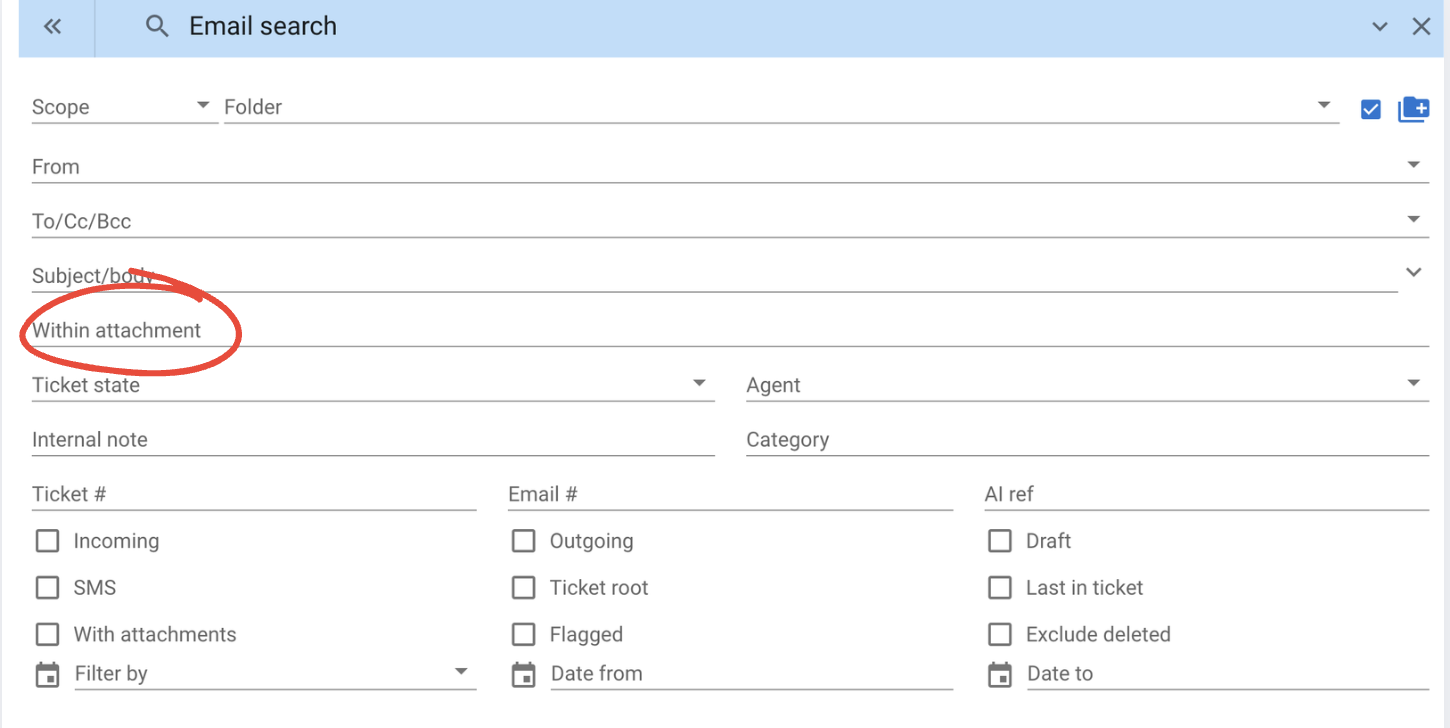
How do you search within an email attachment?
- 1.
Click on the Email Search button on the top right.
- 2.
In the field “Within Attachment,” enter a detail from the document you are looking for, such as an invoice number, ticket number, client name, or a phrase you remember.
- 3.
Narrow the results with a filter category: ticket number, email address, email body text, or attachment content.
- 4.
Review the chronological results to find the match within its full email conversation.
Why does attachment search matter for customer support?
Without it, finding a file means finding the right email first, opening the attachment, and checking whether it’s the right one. With attachment content searchable, you go straight from a search term to the right file, which matters most when several people are working the same shared mailbox.
FAQ: searching email attachments in FocalScope
How do I find an email if I only remember what was in the attachment?
Search for the information you remember from the file itself, such as an invoice number or a phrase from the document. FocalScope matches the query against attachment content, not just the email’s subject line and body.
Can you search inside a PDF attachment?
Yes. FocalScope searches inside PDF attachments, as well as Microsoft Word, Excel, and PowerPoint files.
Can you search attachments in a shared mailbox?
Yes. Attachment search works across shared email and ticket conversations, so it holds up in high-volume, multi-user mailboxes.
What can you search for inside an attachment?
Any word or phrase contained in the file, including invoice numbers, ticket numbers, customer names, product names, and specific terms.
How are search results ordered?
Chronologically, so the most relevant match is easy to place within the conversation history.
Can I search attachments from the mobile app?
Yes. The mobile app has the same attachment search as desktop, so you can find a file’s contents from your phone as easily as from your desk. That matters most when you’re away from your screen and a customer needs an answer that only lives in a document.
Every Channel. One Inbox. Zero Guesswork.
Faster search is just one part of how FocalScope brings email, live chat, WhatsApp, and voice into a single, searchable view for your team. See what else it can do for your support workflow.
Want to see how this could work for your team? Book a demo for a personalised walkthough.
Related Topics


Custom Wiki Knowledgebase

Call Routing &
SLA Customisations